
Keep your coding-agent configuration in sync across machines.
OCP keeps your agents, skills, plugins, and settings in sync across machines, without copying a trail of folders and files by hand. Currently works with OpenCode; other harnesses coming soon!
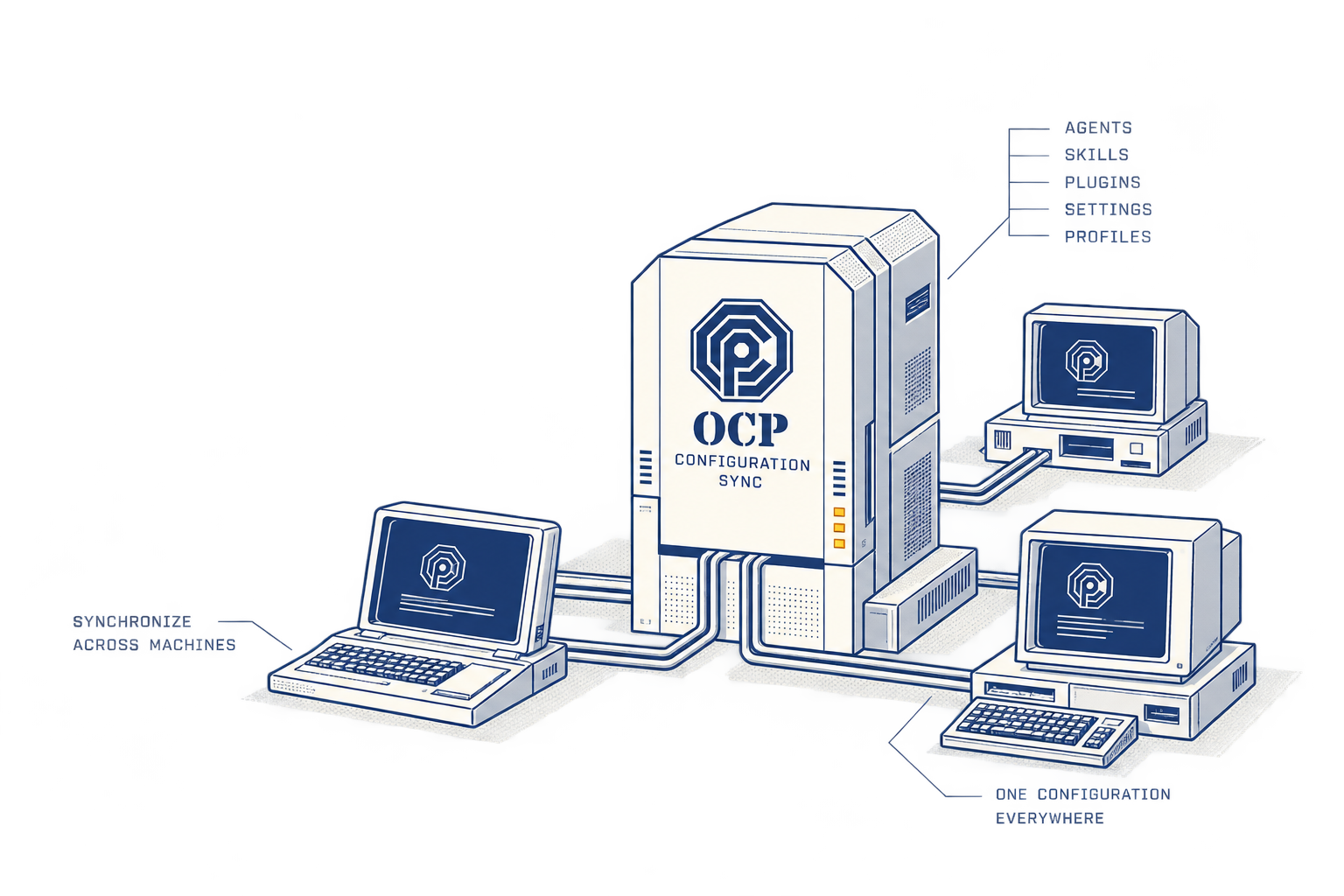
What does OCP do?
Keep one shared source for your laptop, desktop, and remote dev machine. OCP generates the configuration your coding-agent harness uses, with profiles for different kinds of work and overrides for each machine.
It's useful if you work in something like T3 and want the same agent instructions and skills wherever you run OpenCode. You can maintain the source yourself or ask a coding agent to help.
How do I get started?
You'll need OpenCode installed and authenticated. Start with a local source; you can add Git sync when you're ready to use another machine.
Install OCP
On macOS or Linux, run:
Install OCPcurl -fsSL https://raw.githubusercontent.com/nandorocker/ocp/main/install.sh | shThe installer checks the release checksum and puts OCP in
~/.local/bin. See installation instructions for OS details andPATHhelp, or read the installer first.Set up your source
Keep a backup of your existing OpenCode configuration before setup. OCP preserves it for
ocp reset, then manages the global configuration path.Set up OCP~/.local/bin/ocp setupFollow the prompts to choose a new source or bring an existing setup. Your source is the directory of files you'll edit and keep. A profile is a named configuration for a kind of work, such as implementation or review.
Check the result and start a session
Start using OCP~/.local/bin/ocp status opencodeSetup generates and activates a profile. Status shows which source and profile you're using;
opencodestarts the session. If you'd rather build your first profiles by hand, follow the quick start.
One single source of truth for all your machines
Edit your source, then run ocp apply to generate the configuration. Profiles can inherit shared agents, skills, and settings without duplicating them. Use ocp use <profile> to switch profiles.
When you put the source in Git, ocp sync brings changes between machines and renders your profiles. It can commit and push changes, so read how sync works before using it on a repository you share.
I'm Nando Rossi, the developer behind OCP. If you get stuck or have an idea, open an issue. I'd like to hear how it fits your setup.